
Did you know that nearly 40% of the time, the stock level you see on your screen is wrong?
It sounds impossible, but recent retail studies reveal a hard truth: the average inventory accuracy for retailers hovers at just 63%. According to IHL Group, inventory distortion, the twin evils of out-of-stocks and overstocks, bleeds the global economy of $1.75 trillion every single year.
Perhaps even more alarming for small businesses is a report showing that 43% of SMEs do not track their inventory effectively at all.
For a WooCommerce store owner, those aren’t just abstract numbers. That is the customer you just had to refund because you sold a product you didn’t have. It is the stress of late-night data entry. It is the sinking feeling that your business is running you, rather than you running it.
If you are still manually updating stock levels, you are fighting a losing battle against these statistics. But there is a better way, one that doesn’t require expensive enterprise software.
In this guide, we are going to fix your WooCommerce inventory management using the tool you already know and love: Google Sheets.
Why Automate? The High Cost of “I’ll Do It Later”
You might think manual updates are “free” because you do them yourself. But the data suggests otherwise.
Recent industry reports from 2024 and 2025 highlight a startling reality:
- Inventory Accuracy is Low: The average U.S. retail operation has an inventory accuracy of only about 63%. That means nearly 4 out of 10 times, what the system says doesn’t match reality.
- The Cost is Massive: Inventory distortion (stockouts and overstocks) costs the global retail industry an estimated $1.73 trillion annually.
- Small Business Impact: 43% of small businesses don’t track inventory effectively, leading to stockouts that kill customer retention.
Automate stock updates in WooCommerce, and you don’t just save time; you stop leaking money.
The Concept: How It Works
Imagine Google Sheets as your “Command Center.” It is where you view, edit, and analyze your stock. WooCommerce is the “Storefront.”
Our goal is two-way inventory sync WooCommerce Google Sheets:
- Store to Sheet: When a sale happens on WooCommerce, the Sheet updates automatically.
- Sheet to Store: When you change a number in the Sheet (after a supplier delivery), WooCommerce updates instantly.
We will look at three ways to achieve this, ranging from “Easy” to “Advanced AI.”
Method 1: The No-Code Solution (Zapier/Make)

If you need a quick fix and aren’t ready to write code, tools like Zapier are your best friend. This acts as a bridge between your store and your sheet.
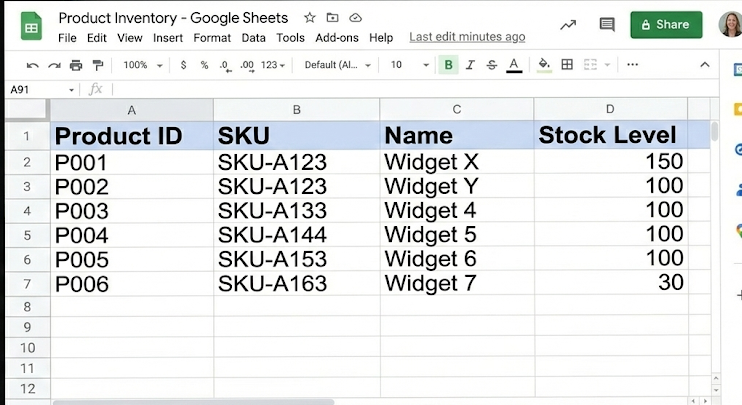
Step 1: Prepare Your Sheet
Create a Google Sheet with headers: Product ID, SKU, Name, and Stock Level.
- Tip: The
Product IDis crucial. It is the unique language WooCommerce speaks.
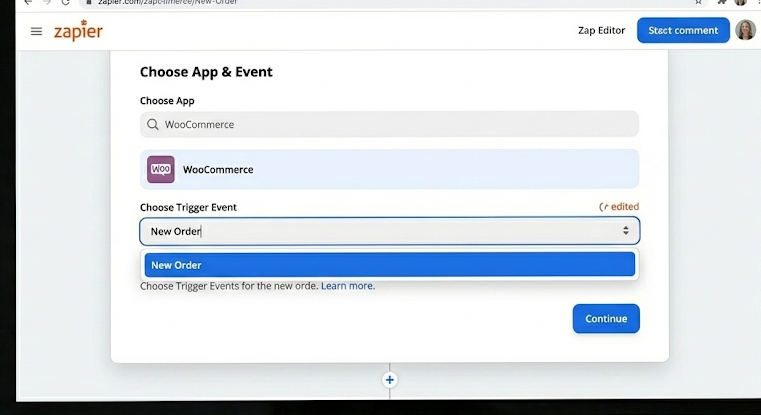
Step 2: Connect the “Trigger”
- Log into Zapier.
- Choose WooCommerce as your app and “New Order“ as the trigger.
- This tells Zapier: “Watch my store. When someone buys something, wake up.”
Step 3: Set the “Action”
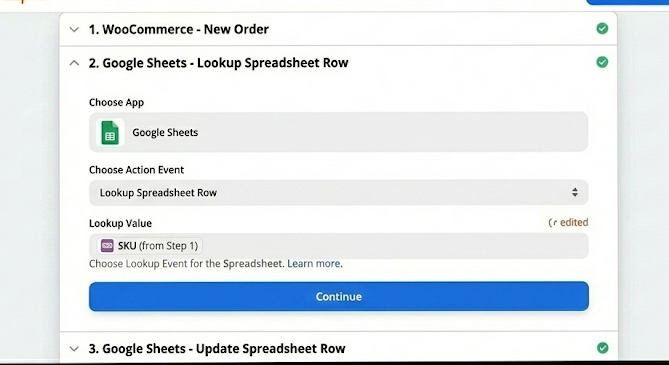
- Choose Google Sheets as the action app.
- Select “Lookup Spreadsheet Row“. Search for the product using the SKU from the order.
- Add a subsequent step: “Update Spreadsheet Row“.
- Tell Zapier to subtract the quantity ordered from the current stock in the sheet.
Zapier WooCommerce inventory automation is fantastic for starting out. However, it can get expensive if you have thousands of orders (zaps) per month.
Method 2: The Data Scientist’s Approach (Python Automation)
As an engineer, you likely prefer control and efficiency over paying monthly subscription fees for Zaps. This is where business process automation using Python shines.
We can write a script that pulls data from your Google Sheet and pushes it to the WooCommerce REST API.
Prerequisites
- WooCommerce API Keys: Go to
WooCommerce > Settings > Advanced > REST APIand generate a Consumer Key and Secret. - Google Service Account: Set up a project in Google Cloud Console to get your
credentials.jsonfor accessing Sheets.
The Python Script
Here is a simple example of how to bulk update WooCommerce inventory using the woocommerce and gspread libraries.
import gspread
from woocommerce import API
import pandas as pd
import time

# 1. Setup WooCommerce Connection
wcapi = API(
    url="https://yourstore.com",
    consumer_key="ck_your_consumer_key",
    consumer_secret="cs_your_consumer_secret",
    version="wc/v3",
    timeout=20
)

# 2. Setup Google Sheets Connection
gc = gspread.service_account(filename='credentials.json')
sh = gc.open("Inventory_Master_Sheet")
worksheet = sh.get_worksheet(0)

def sync_inventory():
    print("Starting Inventory Sync...")

    # Get all data from sheet
    data = worksheet.get_all_records()
    df = pd.DataFrame(data)

    # Loop through rows
    for index, row in df.iterrows():
        product_id = row['Product ID']
        new_stock = row['Stock Level']

        # Data validation: Ensure stock is an integer
        try:
            stock_qty = int(new_stock)
        except ValueError:
            print(f"Skipping invalid stock value for ID {product_id}")
            continue

        # 3. Update WooCommerce
        # We use a try-except block to handle API hiccups gracefully
        try:
            data = {
                "manage_stock": True,
                "stock_quantity": stock_qty
            }

            # The API call
            wcapi.put(f"products/{product_id}", data)
            print(f"Updated Product {product_id} to stock: {stock_qty}")

        except Exception as e:
            print(f"Error updating {product_id}: {e}")

        # Sleep to avoid hitting API rate limits
        time.sleep(0.5)

    print("Sync Complete.")

if __name__ == "__main__":
sync_inventory()Why this is better
- It is Free (running locally or on a cheap VPS).
- You can add logic. For example, “If stock < 5, send me a WhatsApp message.”
- Python handles thousands of rows effortlessly compared to manual entry.
Method 3: Integrating AI for Demand Forecasting
Now, let’s satisfy that intellectual curiosity. WooCommerce inventory management isn’t just about knowing what you have now; it’s about knowing what you will need next week.
AI solutions for inventory management are transforming the industry. Studies show that inventory demand prediction models for SMEs can reduce forecast errors by up to 50% and lower inventory holding costs by 20%.
Tensour provides demand forecasting, automation, custom AI development and prediction services to businesses. If you want Tensour to do demand forecasting for your business, contact us by filling this form or drop us a message at contact@tensour.com.
How to Build a Simple AI Predictor
You don’t need a supercomputer. You can use your Python skills to integrate a simple Machine Learning model into your automation pipeline.
- Data Gathering: Your script already accesses your sales history. Export this to a DataFrame.
- Training: Use a library like
Prophet(by Meta) orscikit-learn. Train a model on “Date” vs. “Quantity Sold.” - Prediction: Ask the model: “How many units of Product A will I sell next month?”
- Action: If the prediction is higher than your current stock, the script highlights that row in Red on your Google Sheet.
Example Logic:
If
Predicted_Sales_Next_Month>Current_Stock: Mark row as “URGENT REORDER”
This moves you from reactive management to proactive optimization.
Common Challenges & Solutions
Even the best WooCommerce automation services face hurdles.
1. The “Race Condition” (Stock Mismatch)
- Problem: A customer buys an item exactly when you are uploading a new spreadsheet. Who wins?
- Solution: always “Get” the latest stock from the API before you “Put” an update. Or, use “webhooks” to update your sheet instantly when a sale happens, ensuring your sheet is always the “source of truth.”
2. API Rate Limits
- Problem: If you try to bulk update WooCommerce inventory for 5,000 items in 1 minute, your server will likely block you.
- Solution: Use the
batchendpoint in WooCommerce (allows updating 100 products in one request) or addtime.sleep()in your Python loop, as shown in the code above.
3. Variable Products
- Problem: “Blue Shirt Size L” has a different ID than “Blue Shirt Size M.”
- Solution: Your Google Sheet must track Variation IDs, not just the parent Product ID.
Conclusion
We started this guide with a staggering statistic: a $1.75 trillion global loss due to bad inventory management. But for us, the goal of WooCommerce inventory automation goes beyond just saving money.
It is about integrity. It is about ensuring that when your website says “Available,” it speaks the truth. By bridging the gap between your WooCommerce store and Google Sheets whether through a quick Zapier workflow, a robust Python script, or advanced AI demand forecasting, you are building a foundation of reliability.
You are no longer wasting hours on data entry that a machine can do in seconds. You are freeing yourself to focus on strategy, growth, and the things that truly matter in life.
Tensour is offering free 30 min slots with a Data Scientist. If you are interested in a Data Scientist looking at your data, book your slot now.
Leave a Reply